MicrosoftのmarkitdownでPDF・Office・音声をMarkdownに変換|RAGパイプライン構築の実践ガイド
MicrosoftのmarkitdownでPDF・Office・音声をMarkdownに変換|RAGパイプライン構築の実践ガイド
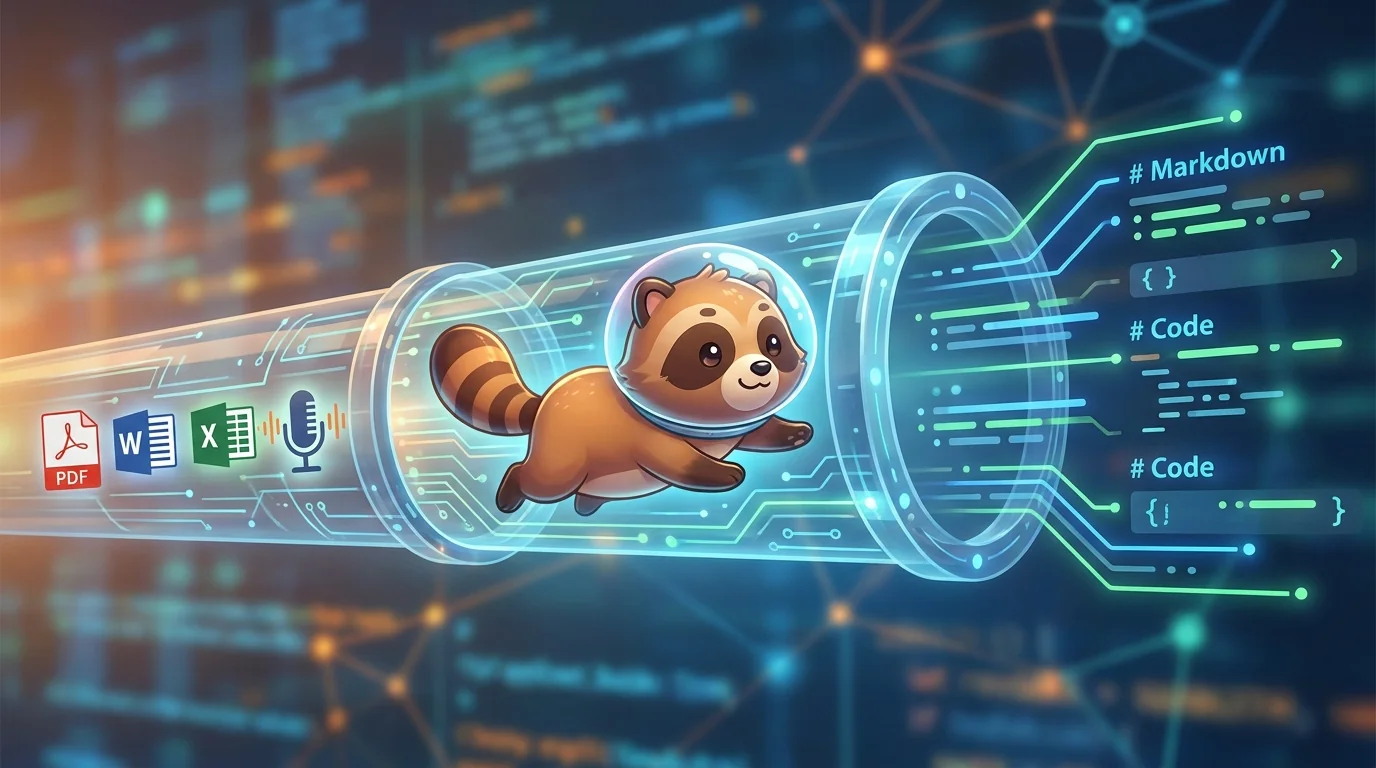
あらゆるドキュメントをMarkdownに。RAG構築の前処理がこれ一本で完結します。
1. markitdownとは?Microsoftが開発した万能ドキュメント変換ツール
1-1. markitdownが生まれた背景――LLM時代の「テキスト化」課題
大規模言語モデル(LLM)を業務システムに組み込む際、最初の壁となるのが「ドキュメントのテキスト化」です。社内に存在するPDF・Word・Excel・PowerPoint・音声ファイルは、そのままではLLMが直接処理できません。
Microsoftは2024年末にこの課題を解決するOSSツール「markitdown」を公開しました。GitHubで公開直後から爆発的な反響を呼び、数日で40,000スター超えを記録。LLMアプリ開発者にとって欠かせないツールとして急速に普及しています。
1-2. 対応フォーマット一覧
markitdownが対応するファイル形式は非常に幅広く、以下のフォーマットをMarkdownに変換できます。
| カテゴリ | 対応形式 |
|---|---|
| ドキュメント | PDF、DOCX、PPTX、XLSX |
| Web | HTML、URL |
| 画像 | PNG、JPEG、GIF、BMP、TIFF(OCR対応) |
| 音声 | MP3、WAV、M4A(Whisper API使用) |
| データ | CSV、JSON、XML |
| コード・ノート | Jupyter Notebook(.ipynb) |
| アーカイブ | ZIP(中身を再帰展開) |
1-3. OSSとしての特徴とライセンス(MIT)
- ライセンス: MIT(商用利用・改変・再配布が自由)
- リポジトリ: microsoft/markitdown
- 最新バージョン: v0.1.x系(2025年現在)
- Python要件: 3.9以上
1-4. 競合ツールとの違いと優位性
| ツール | 特徴 | markitdownとの違い |
|---|---|---|
| Docling | IBM製、高精度PDF解析 | レイアウト解析精度は高いが重量級 |
| Unstructured | 豊富なコネクタ | エンタープライズ向けで有償機能あり |
| PyMuPDF | 高速PDF処理 | PDF専用でMultiフォーマット非対応 |
| markitdown | 軽量・多フォーマット | 最小限の依存でサクッと動く |
markitdownの最大の優位性は「インストールが軽量で、対応フォーマットが広く、LLMとの連携が容易」な点です。
2. インストールと環境構築
2-1. pip によるインストール手順
基本的なインストールはpip一行で完了します。
# 基本インストール
pip3 install markitdown

# 全オプション依存をまとめてインストール(推奨)
pip3 install "markitdown[all]"
特定機能のみ有効化したい場合は個別に指定できます。
# PDFサポートのみ
pip3 install "markitdown[pdf]"

# 音声変換(Whisper API)のみ
pip3 install "markitdown[audio]"

# 画像OCRのみ
pip3 install "markitdown[image]"
2-2. 環境変数の設定
LLMプラグインや音声変換を使う場合はAPIキーを設定します。
# OpenAI API キー(GPT-4o画像解析・Whisper音声変換に使用)
export OPENAI_API_KEY="sk-..."

# Azure OpenAI 利用時
export AZURE_OPENAI_API_KEY="..."
export AZURE_OPENAI_ENDPOINT="https://your-resource.openai.azure.com/"

# Azure Document Intelligence(高精度PDF OCR)
export AZURE_DOCUMENT_INTELLIGENCE_ENDPOINT="https://..."
export AZURE_DOCUMENT_INTELLIGENCE_KEY="..."
2-3. Docker を使った環境構築
本番環境ではDockerコンテナに隔離することを推奨します。
FROM python:3.11-slim

WORKDIR /app

# システム依存パッケージのインストール
RUN apt-get update && apt-get install -y \
    ffmpeg \
    libmagic1 \
    && rm -rf /var/lib/apt/lists/*

# markitdownのインストール
RUN pip install "markitdown[all]"

COPY . .

CMD ["python", "convert.py"]
3. 基本的な使い方――CLIとPython APIの両方をマスターする
3-1. CLI でワンコマンド変換する
# ローカルファイルをMarkdownに変換
markitdown input.pdf > output.md

# URLを直接変換
markitdown https://example.com/document.html > output.md

# PPTX変換
markitdown presentation.pptx > slides.md

# 音声ファイルを文字起こし
markitdown meeting_audio.mp3 > transcript.md
3-2. Python コードから呼び出す基本パターン
from markitdown import MarkItDown

# インスタンス生成
md = MarkItDown()

# ファイル変換
result = md.convert("document.pdf")

# テキスト内容を取得
print(result.text_content)
3-3. URLやバイト列を渡す方法
from markitdown import MarkItDown

md = MarkItDown()

# URLから直接変換
result = md.convert("https://example.com/report.pdf")
print(result.text_content)

# バイト列から変換(APIレスポンスなどに便利)
with open("document.pdf", "rb") as f:
    pdf_bytes = f.read()

result = md.convert_stream(
    stream=__import__("io").BytesIO(pdf_bytes),
    file_extension=".pdf"
)
print(result.text_content)
4. ファイル種別ごとの変換詳細と実践Tips
4-1. PDF変換――テキスト抽出 vs OCR の使い分け
通常のPDF(テキストレイヤーあり)はデフォルトで高速変換されます。スキャンPDF(画像PDF)の場合は、Azure Document Intelligenceを使ったOCRが有効です。
from markitdown import MarkItDown
from azure.ai.documentintelligence import DocumentIntelligenceClient
from azure.core.credentials import AzureKeyCredential

# Azure Document Intelligence を使った高精度OCR
client = DocumentIntelligenceClient(
    endpoint=os.environ["AZURE_DOCUMENT_INTELLIGENCE_ENDPOINT"],
    credential=AzureKeyCredential(os.environ["AZURE_DOCUMENT_INTELLIGENCE_KEY"])
)

md = MarkItDown(docintel_client=client)
result = md.convert("scanned_document.pdf")
print(result.text_content)
4-2. Excel(XLSX)変換――複数シートの扱い方
Excelファイルは複数シートをまとめてMarkdown表に変換します。
from markitdown import MarkItDown

md = MarkItDown()
result = md.convert("data.xlsx")
print(result.text_content)
# 出力例:
# ## Sheet1
# | 項目 | 値 | 備考 |
# |------|-----|------|
# | 売上 | 1000 | ... |
4-3. 音声変換(MP3・WAV)――Whisper APIで自動文字起こし
from markitdown import MarkItDown
from openai import OpenAI

# OpenAIクライアントを渡すことでWhisper APIが有効化
openai_client = OpenAI(api_key=os.environ["OPENAI_API_KEY"])
md = MarkItDown(llm_client=openai_client)

result = md.convert("meeting_audio.mp3")
print(result.text_content)
# 出力: 音声の文字起こしテキストがMarkdown形式で返される
4-4. 画像変換――GPT-4o による内容説明生成
from markitdown import MarkItDown
from openai import OpenAI

openai_client = OpenAI()

md = MarkItDown(
    llm_client=openai_client,
    llm_model="gpt-4o"  # 画像解析にgpt-4oを使用
)

result = md.convert("diagram.png")
print(result.text_content)
# 出力例:
# この図はシステムアーキテクチャを示しており、
# フロントエンド、APIゲートウェイ、バックエンドサービスの
# 3層構造が描かれています。
5. LLMプラグインで変換精度を引き上げる
5-1. Azure OpenAI を使った閉域環境での運用
機密情報を含む社内文書は、Azure OpenAIを使うことでデータが外部に出ない閉じた環境で処理できます。
import os
from openai import AzureOpenAI
from markitdown import MarkItDown

azure_client = AzureOpenAI(
    api_key=os.environ["AZURE_OPENAI_API_KEY"],
    api_version="2024-10-21",
    azure_endpoint=os.environ["AZURE_OPENAI_ENDPOINT"]
)

md = MarkItDown(
    llm_client=azure_client,
    llm_model="gpt-4o"  # Azure OpenAIのデプロイ名
)

result = md.convert("confidential_report.pdf")
print(result.text_content)
5-2. コスト管理のベストプラクティス
LLMを使った変換はAPI料金が発生します。以下の方針でコストを抑えましょう。
- テキストレイヤーのあるPDFにはLLMを使わない(デフォルト動作で十分)
- 画像変換のみLLM有効:
llm_clientは画像・音声変換にだけ効かせる - バッチ処理でAPI呼び出しをまとめる
- キャッシュ層を挟む:同じファイルを再変換しないよう変換結果をDBに保存
6. RAGパイプラインへの組み込み実践
6-1. RAGにおける「前処理」の重要性
RAG(Retrieval-Augmented Generation)では、ドキュメントの前処理品質が回答精度に直結します。markitdownはこの前処理フェーズを担う重要なコンポーネントです。
[社内ドキュメント群]
  PDF / DOCX / PPTX / 音声
        ↓
  [ markitdown ]  ← ここを担当
        ↓
  [Markdownテキスト]
        ↓
  [チャンク分割]
        ↓
  [埋め込みベクトル化]
        ↓
  [ベクトルDB格納]
        ↓
  [LLMクエリ応答]
6-2. LangChain との統合パターン
from langchain.schema import Document
from markitdown import MarkItDown
from langchain_text_splitters import MarkdownHeaderTextSplitter
from langchain_openai import OpenAIEmbeddings
from langchain_chroma import Chroma

def load_documents_with_markitdown(file_paths: list[str]) -> list[Document]:
    """markitdownでファイルを読み込み、LangChainのDocumentに変換"""
    md = MarkItDown()
    documents = []

    for path in file_paths:
        result = md.convert(path)
        doc = Document(
            page_content=result.text_content,
            metadata={"source": path}
        )
        documents.append(doc)

    return documents

# Markdownの見出しを基準にセマンティック分割
headers_to_split_on = [
    ("#", "Header1"),
    ("##", "Header2"),
    ("###", "Header3"),
]

splitter = MarkdownHeaderTextSplitter(
    headers_to_split_on=headers_to_split_on,
    strip_headers=False
)

# ドキュメント読み込みと分割
file_paths = ["manual.pdf", "faq.docx", "specs.xlsx"]
documents = load_documents_with_markitdown(file_paths)

chunks = []
for doc in documents:
    splits = splitter.split_text(doc.page_content)
    # メタデータを引き継ぐ
    for split in splits:
        split.metadata.update(doc.metadata)
    chunks.extend(splits)

# ベクトルDBへ格納
embeddings = OpenAIEmbeddings(model="text-embedding-3-small")
vectorstore = Chroma.from_documents(
    documents=chunks,
    embedding=embeddings,
    persist_directory="./chroma_db"
)

print(f"格納完了: {len(chunks)} チャンク")
6-3. エンドツーエンド実装:PDF社内文書をRAG化する
以下は、PDF・Word・Excelが混在するフォルダをまるごとRAG化する実践的なコードです。
import os
import glob
from pathlib import Path
from markitdown import MarkItDown
from langchain_openai import OpenAIEmbeddings, ChatOpenAI
from langchain_chroma import Chroma
from langchain_text_splitters import RecursiveCharacterTextSplitter
from langchain.schema import Document
from langchain.chains import RetrievalQA

def build_rag_from_directory(
    docs_dir: str,
    chroma_dir: str = "./chroma_db",
    supported_extensions: list[str] = None
) -> RetrievalQA:
    """
    指定ディレクトリのドキュメントをRAGパイプラインに変換

    Args:
        docs_dir: 変換対象ドキュメントのディレクトリ
        chroma_dir: ChromaDBの保存先
        supported_extensions: 対象拡張子リスト

    Returns:
        RetrievalQAチェーン
    """
    if supported_extensions is None:
        supported_extensions = [".pdf", ".docx", ".xlsx", ".pptx", ".html"]

    md = MarkItDown()
    documents = []

    # ディレクトリ内のファイルを再帰的に処理
    for ext in supported_extensions:
        pattern = os.path.join(docs_dir, f"**/*{ext}")
        for file_path in glob.glob(pattern, recursive=True):
            try:
                print(f"変換中: {file_path}")
                result = md.convert(file_path)

                if result.text_content.strip():  # 空でない場合のみ追加
                    doc = Document(
                        page_content=result.text_content,
                        metadata={
                            "source": file_path,
                            "filename": Path(file_path).name,
                            "extension": ext,
                        }
                    )
                    documents.append(doc)
            except Exception as e:
                print(f"変換失敗 ({file_path}): {e}")
                continue

    print(f"\n変換完了: {len(documents)} ファイル")

    # チャンク分割
    text_splitter = RecursiveCharacterTextSplitter(
        chunk_size=1000,
        chunk_overlap=200,
        separators=["\n## ", "\n### ", "\n\n", "\n", " "]
    )
    chunks = text_splitter.split_documents(documents)
    print(f"チャンク数: {len(chunks)}")

    # ベクトルDB構築
    embeddings = OpenAIEmbeddings(model="text-embedding-3-small")
    vectorstore = Chroma.from_documents(
        documents=chunks,
        embedding=embeddings,
        persist_directory=chroma_dir
    )

    # RAGチェーン構築
    llm = ChatOpenAI(model="gpt-4o-mini", temperature=0)
    qa_chain = RetrievalQA.from_chain_type(
        llm=llm,
        chain_type="stuff",
        retriever=vectorstore.as_retriever(
            search_type="similarity",
            search_kwargs={"k": 5}
        ),
        return_source_documents=True
    )

    return qa_chain


# 使用例
if __name__ == "__main__":
    qa = build_rag_from_directory("./company_docs")

    # クエリ実行
    response = qa.invoke({"query": "有給休暇の申請手順を教えてください"})
    print("\n--- 回答 ---")
    print(response["result"])
    print("\n--- 参照元 ---")
    for doc in response["source_documents"]:
        print(f"  - {doc.metadata['filename']}")
7. 大量ファイルの一括処理と自動化
7-1. 並列処理で高速化する
大量ファイルを処理する際は、concurrent.futures で並列化して処理速度を向上させます。
import os
import glob
from concurrent.futures import ThreadPoolExecutor, as_completed
from markitdown import MarkItDown
from pathlib import Path

def convert_file(file_path: str) -> dict:
    """単一ファイルの変換(スレッドセーフ)"""
    md = MarkItDown()  # スレッドごとにインスタンスを生成
    try:
        result = md.convert(file_path)
        return {
            "path": file_path,
            "content": result.text_content,
            "success": True
        }
    except Exception as e:
        return {
            "path": file_path,
            "error": str(e),
            "success": False
        }

def batch_convert(
    docs_dir: str,
    output_dir: str,
    max_workers: int = 4
) -> dict:
    """ディレクトリ内ファイルを並列変換"""
    file_paths = glob.glob(
        os.path.join(docs_dir, "**/*"),
        recursive=True
    )
    file_paths = [p for p in file_paths if os.path.isfile(p)]

    os.makedirs(output_dir, exist_ok=True)

    results = {"success": 0, "failure": 0, "errors": []}

    with ThreadPoolExecutor(max_workers=max_workers) as executor:
        futures = {
            executor.submit(convert_file, path): path
            for path in file_paths
        }

        for future in as_completed(futures):
            result = future.result()

            if result["success"]:
                # Markdownファイルとして保存
                output_path = os.path.join(
                    output_dir,
                    Path(result["path"]).stem + ".md"
                )
                with open(output_path, "w", encoding="utf-8") as f:
                    f.write(result["content"])
                results["success"] += 1
            else:
                results["failure"] += 1
                results["errors"].append({
                    "file": result["path"],
                    "error": result["error"]
                })

    return results

# 実行
stats = batch_convert(
    docs_dir="./documents",
    output_dir="./markdown_output",
    max_workers=8
)
print(f"成功: {stats['success']} / 失敗: {stats['failure']}")
8. セキュリティと本番運用の考慮事項
8-1. 機密ドキュメントを外部API送信しない設計パターン
社内の機密文書をAI処理する場合、テキストレイヤーのあるPDFや通常のOfficeファイルはAPIを使わずローカルで変換できます。
from markitdown import MarkItDown

# LLMクライアントを渡さなければ、外部API通信は発生しない
md = MarkItDown()  # ← llm_client なし = 完全ローカル処理

result = md.convert("confidential.pdf")
# テキストレイヤーがあれば、外部通信なしで変換完了
8-2. ローカルLLM(Ollama)との組み合わせ
画像OCRや音声変換もオフラインで行いたい場合は、Ollamaと組み合わせます。
from openai import OpenAI
from markitdown import MarkItDown

# OllamaはOpenAI互換APIを提供
ollama_client = OpenAI(
    base_url="http://localhost:11434/v1",
    api_key="ollama"  # ダミーキー
)

md = MarkItDown(
    llm_client=ollama_client,
    llm_model="llava:13b"  # ローカルのマルチモーダルモデル
)

# 画像変換が完全オフラインで処理される
result = md.convert("diagram.png")
print(result.text_content)
8-3. ローカルWhisperで完全オフライン音声変換
# faster-whisperのインストール
pip install faster-whisper
from faster_whisper import WhisperModel
import os
def transcribe_local(audio_path: str, model_size: str = "medium") -> str:
"""
ローカルWhisperモデルで音声を文字起こし
外部APIを使わず完全オフラインで動作
"""
model = WhisperModel(model_size, device="cpu", compute_type="int8")
segments, info = model.transcribe(audio_path, language="ja")
transcript = "\n".join(segment.text for segment in segments)
return transcript
# markitdownとの組み合わせ(前処理として使用)
transcript = transcribe_local("meeting.mp3")
print(transcript)9. 実際の活用事例
9-1. 社内ナレッジベースのRAG化(PDF・Word数千件)
ある製造業企業では、数十年分の技術マニュアル(PDF 3,000件以上)をmarkitdownで一括変換し、社内チャットボットのRAGに活用。従来は専門家への問い合わせに数日かかっていた技術仕様の確認が、数秒で回答できるようになりました。
9-2. 議事録音声ファイルの自動テキスト化
週次会議の音声録音をmarkitdown + Whisper APIで自動文字起こしし、LangChainのRAGに格納。「先月のA案件の決定事項は?」といった自然言語クエリで過去の議事録を即座に検索できるシステムを構築した事例があります。
9-3. 研究論文PDFの一括変換と引用管理
学術研究チームでは、arXivからダウンロードした論文PDF数百件をmarkitdownで変換し、LlamaIndexでインデックス化。「この技術の先行研究を教えて」「この手法と類似した論文は?」といった問いに即答するリサーチアシスタントを実現しています。
10. まとめと今後の展望
10-1. markitdownを使うべき場面・使わない場面
使うべき場面:
- 多様なフォーマットのドキュメントをLLM/RAGのインプットに変換したい
- インストールを軽量に保ちたい
- LangChainやLlamaIndexと連携したい
- 音声・画像変換もワンストップで行いたい
使わない場面:
- 複雑なレイアウトのPDF(年次報告書・学術論文)で高精度が必要 → Doclingを検討
- エンタープライズ向けのガバナンスやコネクタが多数必要 → Unstructuredを検討
- PDF処理の速度が最優先 → PyMuPDFを検討
10-2. ロードマップと今後の期待機能
markitdownは活発に開発が続いており、コミュニティからのPRも活発です。今後期待される機能として以下が挙げられます。
- カスタムプロセッサAPIの安定化(独自拡張の標準化)
- 非同期処理(async/await) サポート
- ストリーミング変換(大容量ファイルのメモリ効率改善)
- 表構造の高精度変換(複雑なマージセル対応)
10-3. コントリビューションと公式リポジトリ
- GitHub: https://github.com/microsoft/markitdown
- PyPI: https://pypi.org/project/markitdown/
- ライセンス: MIT
IssueやPRは積極的に受け付けられており、独自のファイル形式コンバータを追加するカスタムプロセッサの実装も公式ドキュメントでサポートされています。
付録
A. よく使うコマンド・コードスニペット集
# CLIで変換してファイルに保存
markitdown input.pdf -o output.md

# 複数ファイルをループ変換(bash)
for f in ./docs/*.pdf; do
    markitdown "$f" > "./markdown/${f%.pdf}.md"
done

# パイプで直接LLMに渡す(CLI連携)
markitdown report.pdf | llm "この文書を3行で要約してください"
# バージョン確認
import markitdown
print(markitdown.__version__)
# 変換結果のメタデータ確認
result = md.convert("file.pdf")
print(result.text_content[:500]) # 先頭500文字を確認
print(len(result.text_content)) # 文字数確認B. 対応フォーマット完全リファレンス
| 拡張子 | 変換エンジン | LLM必要 | 備考 |
|---|---|---|---|
| pdfminer / Azure DI | 任意 | スキャンPDFはOCR推奨 | |
| .docx | python-docx | 不要 | 見出し・表を保持 |
| .xlsx | openpyxl | 不要 | 全シートを変換 |
| .pptx | python-pptx | 不要 | スライドごとにH2見出し |
| .png/.jpg | OpenAI/Azure Vision | 必要 | 画像説明を生成 |
| .mp3/.wav | Whisper API | 必要 | 音声文字起こし |
| .html | BeautifulSoup | 不要 | ボイラープレート除去 |
| .ipynb | nbformat | 不要 | コード・出力を保持 |
| .csv | pandas | 不要 | Markdownテーブルに変換 |
| .zip | 再帰展開 | 不要 | 内部ファイルを順次変換 |
C. 関連ツール・ライブラリリンク集
- LangChain: https://python.langchain.com/
- LlamaIndex: https://www.llamaindex.ai/
- Chroma: https://www.trychroma.com/
- Qdrant: https://qdrant.tech/
- Ollama: https://ollama.ai/
- faster-whisper: https://github.com/SYSTRAN/faster-whisper
- Azure Document Intelligence: https://azure.microsoft.com/ja-jp/products/ai-services/ai-document-intelligence
関連記事

プロンプトは「長くする」時代から「短くして強くする」時代へ — ESPOが示したプロンプト最適化の新常識
EMNLP 2026採択のESPOは、プロンプト長を47%削減しながら精度を+3.76ポイント改善。診断・多様化・安定化の3段階でプロンプト膨張を解決する新手法を解説。

Opus 5は「聞き返さない」──ベンチマーク訓練がLLM品質にもたらした副作用
Opus 5が曖昧な指示でも確認せず勝手に実装を進める理由を解説。ベンチマーク訓練とRLHFが「聞き返さないモデル」を生む構造的メカニズムと、仮定を可視化させるプロンプト設計の実践的対策を紹介。
BM25でCodexのトークン消費を30%削減する — 7,000ファイル規模で実証したコード検索RAG実践
BM25をCodexの前段に挟むだけでトークン消費を29.2%削減、処理時間を41%短縮。7,536ファイル規模での実測データと、キャメルケース対応などコード検索に効くRAG実装テクニックを解説。